EasyBindingBlock
Entity のデフォルトの BindingBlock で用意されていないプロパティをアニメーション表示したい場合や、 Entity 以外の値を更新したい場合などに独自の EasyBindingBlock を作成し利用することができます。
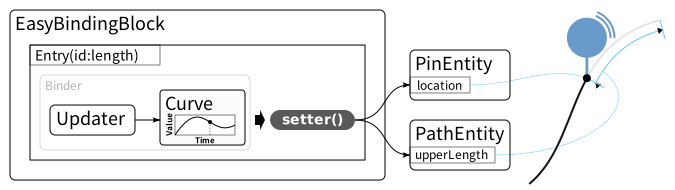
EasyBindingBlock は Updater、 Curve 及び、計算された値を適用する setter 関数をBind(関連付け)します。
Updater、Curve については、Animation Basicページ をご覧ください。
Bindを行うことにより、時刻が更新される度に自動的にオブジェクトのプロパティが計算され適用されるようになります。
上記のアニメーション例では、下記のように一つのプロパティに対して、 PinEntity の位置と、 PathEntity の setUpperLength() で設定される値が連動してアニメーション表示されることにより、
PinEntity が移動した軌跡部分のみ線を書くといった表現が実現されています。
実装手順
Entry の追加
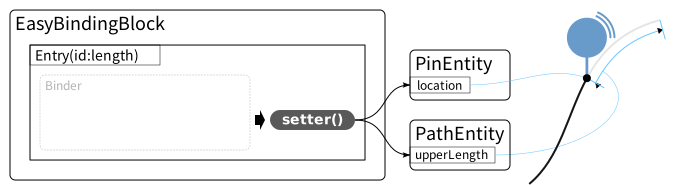
まずは id, type, setter を指定して Entry を追加します。
id
- この
EasyBindingBlock 内でプロパティを識別するための任意の値を指定します。
type
setter
- 計算結果の値を適用する関数です。
type で指定された型の値を引数で受け取り、実際のオブジェクトに値を設定します。
下記に Entry を追加する例を示します。
| const bindingBlock = new mapray.animation.EasyBindingBlock();
const numberType = mapray.animation.Type.find( "number" );
// EasyBindingBlock に新規エントリー(length)を追加
bindingBlock.addEntry( "length", [numberType], null, value => {
pinEntry.setPosition( getPositionAt( value ) );
pathEntity.setUpperLength( value );
});
|
この例では、number 型の length という id のプロパティを追加し、
この値が更新された際に、計算結果の値 value を pathEntity.setUpperLength() 、 pinEntry.setPosition() を用いて設定するようになっています。
getPositionAt() は説明を省略しますが value の値に対応する位置を計算する関数です。
この段階では Updater や Curve が Bind されていないため、プロパティ値が更新されることはありません。
上記の他に、アプリケーションのUIに表示する数値やラベルなどエンティティ以外の値を更新することも実現できます。
Bind
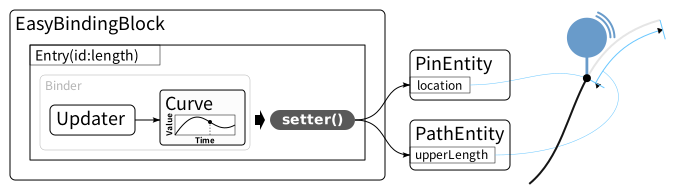
上記のように、EasyBindingBlock に追加された Entry に対して Updater と Curve を Bind します。
id, Updater, Curve を指定して Bind します。
1
2
3
4
5
6
7
8
9
10
11
12
13
14
15
16
17
18
19
20 | const updater = new mapray.animation.Updater();
const bindingBlock = new mapray.animation.EasyBindingBlock();

const numberType = mapray.animation.Type.find( "number" );

// EasyBindingBlock に新規エントリー(length)を追加
bindingBlock.addEntry( "length", [numberType], null, value => {
    pinEntry.setPosition( getPositionAt( value ) );
    pathEntity.setUpperLength( value );
});
// Curve を作成
const curve = new mapray.animation.KFLinearCurve( numberType );
curve.setKeyFrames([
mapray.animation.Time.fromNumber( 0 ), 5.0,
mapray.animation.Time.fromNumber( 5 ), 40.0,
]);
// bindingBlock の length に updater と curve をBindする
bindingBlock.bind( "length", updater, curve );
|
Bind を行うことにより、時刻が更新されると、自動的に値が計算され、指定されたプロパティが更新されるようになります。
サンプルコード
アニメーションで、表示したピンを移動させ、移動経路に線を描画する例を示します。
EasyBindingBlock を使用することで、ピンの移動と経路に表示する線の長さをまとめて制御しています。
 1
 2
 3
 4
 5
 6
 7
 8
 9
10
11
12
13
14
15
16
17
18
19
20
21
22
23
24
25
26
27
28
29
30
31
32
33
34
35
36
37
38
39
40
41
42
43
44
45
46
47
48
49
50
51
52
53
54
55
56
57
58
59
60
61
62
63
64
65
66
67
68
69
70
71
72
73
74
75
76
77
78
79
80
81
82
83
84
85
86
87
88
89
90
91
92
93
94
95
96
97
98
99
100
101
102
103
104 | <!DOCTYPE html>
<html>
<head>
<meta charset="UTF-8">
<script src="https://resource.mapray.com/mapray-js/v0.9.6/mapray.min.js"></script>
<script src="https://resource.mapray.com/ui/v0.9.6/maprayui.min.js"></script>
<link rel="stylesheet" href="https://resource.mapray.com/styles/v1/mapray.css">
<style>
html, body, div#mapray-container { margin: 0; padding: 0; height: 100%; }
</style>
</head>
<body>
<div id="mapray-container"></div>
</body>
</html>
<script>
class CustomViewer extends maprayui.StandardUIViewer {
constructor( container, accessToken, options ) {
super( container, accessToken, options );
const pin = new mapray.PinEntity( this.viewer.scene );
const pinEntry = pin.addPin( new mapray.GeoPoint( 135, 35, 0 ), {size: 50, bg_color: [0.5, 1.0, 1.0], fg_color: [0, 0, 0]} );
this.viewer.scene.addEntity( pin );
const pos1 = [ 130.875921, 33.886291, 0.0 ];
const pos2 = [ 130.874921, 33.881291, 0.0 ];
const length = [ 0, 10 ];
const positionArray = [...pos1];
for ( let j = 1; j <= 100; ++j ) {
positionArray.push( pos1[0] + (pos2[0] - pos1[0]) / 100 * j );
positionArray.push( pos1[1] + (pos2[1] - pos1[1]) / 100 * j );
positionArray.push( 0.0 );
}
const pathEntity = new mapray.PathEntity( this.viewer.scene );
pathEntity.altitude_mode = mapray.AltitudeMode.CLAMP;
pathEntity.addPoints( pos1.concat( pos2 ), length );
pathEntity.setLineWidth( 5 );
pathEntity.setColor( [ 1.0, 0.0, 0.0 ] );
this.viewer.scene.addEntity( pathEntity );
// Define the type for animation values.
const numberType = mapray.animation.Type.find( "number" );
// Create binding block.
const bindingBlock = new mapray.animation.EasyBindingBlock();
bindingBlock.addEntry( "length", [numberType], null, value => {
const positionValue = Math.floor( value * 10 ); // step 10msec
if( positionArray.length > positionValue*3 ) {
const lon = positionArray[positionValue*3+0];
const lat = positionArray[positionValue*3+1];
const alt = this.viewer.getElevation( lat, lon );
pinEntry.setPosition( new mapray.GeoPoint( lon, lat, alt ) );
}
pathEntity.setUpperLength( value );
});
// Create linear curve.
const curve = new mapray.animation.KFLinearCurve( numberType );
curve.setKeyFrames([
mapray.animation.Time.fromNumber( 0 ), 0,
mapray.animation.Time.fromNumber( 30 ), 30,
]);
// Create updater.
this.totalTime = 0;
this.updater = new mapray.animation.Updater();
// Bind "length" entry to updater and curve.
bindingBlock.bind( "length", this.updater, curve );
}
/** @override */
onUpdateFrame( delta_time ) {
super.onUpdateFrame( delta_time );
this.totalTime += delta_time;
this.updater.update( mapray.animation.Time.fromNumber( this.totalTime ) );
}
}
// Set up your Organization Token, which can be created in Mapray Cloud.
const accessToken = "<YOUR_MAPRAY_ACCESS_TOKEN>";
const uiviewer = new CustomViewer( "mapray-container", accessToken, {
dem_provider: new mapray.StandardDemProvider( {
prefix: "https://tiles.mapray.com/dem/",
headers: { Authorization: "Bearer " + accessToken }
} )
} );
uiviewer.setCameraPosition({
longitude: 130.875921,
latitude: 33.892,
height: 200.0
});
uiviewer.setLookAtPosition({
longitude: 130.875921,
latitude: 33.883,
height: 10
});
</script>
|